Monocle gives you full observability in production — traces, logs, exceptions, performance. But what about when you're developing locally?
Monocle Studio is a lightweight companion built for local development. One command, and you get a focused dashboard showing what's happening inside your app as you code. No setup, no external services — it just works.
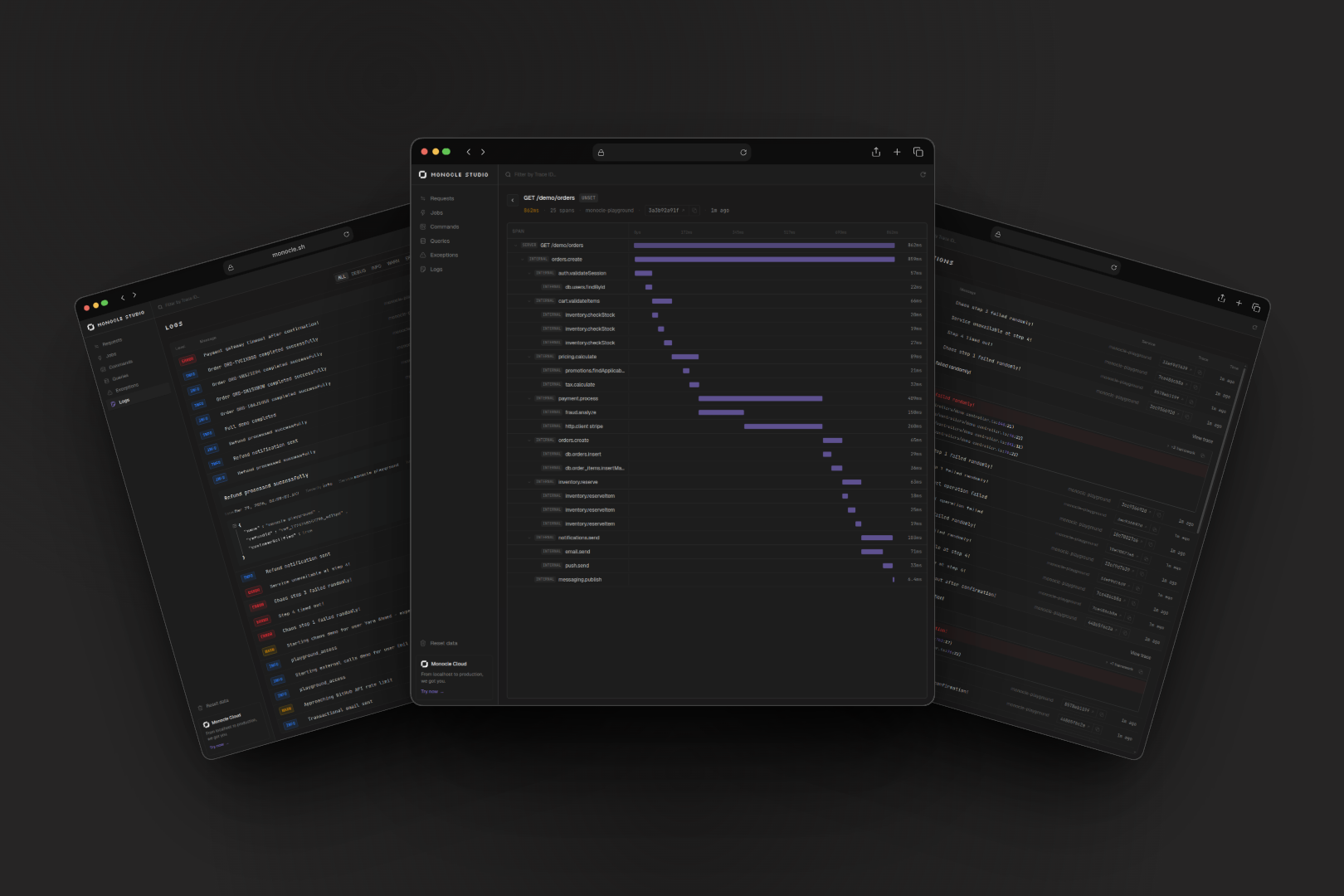
Think of it as browser DevTools, but for your backend. Every HTTP request, every database query, every log — visible in real-time as you develop.
- See the full trace waterfall for every request
- Track outgoing HTTP calls to external APIs
- Spot slow queries before they become production issues
- Browse structured logs with stack traces and JSON attributes
- Catch exceptions before they ever reach your users
- Connect your AI coding assistant via MCP to query your traces
How it works
Your app uses the same Monocle agent as in production. In development, the agent automatically sends telemetry to Monocle Studio instead of the cloud. Studio receives it, stores it locally, and serves a dashboard — all on a single port (localhost:4200). Data persists between restarts so you can review past sessions.
Features
HTTP requests with full span waterfall, timing, and attributes
Structured logs with severity filtering, JSON viewer, and stack traces
Exceptions with stack traces, grouped by type
SQL queries with duration and statement preview
Outgoing HTTP calls to external APIs with domain, status, and duration
Job execution, queue name, duration, and success/failure tracking
Traces for CLI scripts and scheduled tasks with custom spans
Let Claude Code or Cursor query your local traces and logs
New data appears instantly — no manual refresh needed
Quick start
- Install the packages
Terminal npm install -D @monocle.sh/studio @monocle.sh/cli - Start Monocle Studio
Terminal monocle studio devThis starts the Studio server on
http://localhost:4200. - Start your app
Terminal node ace serve --hmrMake some requests, then open
http://localhost:4200to see your traces, logs, and exceptions. - Teach your coding agent about Studio (optional)
Terminal monocle studio install-agentsThis appends a managed Monocle Studio block to
AGENTS.mdorCLAUDE.mdso your agents know about Monocle Studio and how to use it.
No extra configuration is needed. The config/monocle.ts generated by the AdonisJS agent sets
dev: process.env.NODE_ENV === 'development', which is the case during node ace serve. In dev
mode, the agent sends data to Monocle Studio instead of the cloud.
CLI options
monocle studio dev                     # Start on default port 4200
monocle studio dev --port 3000         # Custom port
monocle studio dev --host localhost    # Bind to localhost only
monocle studio dev --open              # Open browser automatically
monocle studio dev --clean             # Clear all stored data before starting
monocle studio dev --db-path ./my.db   # Custom database path
CLI commands
You can also query Studio data directly from your terminal without opening the browser. Fetch traces, logs, and errors with monocle studio traces, monocle studio logs, and monocle studio errors. See the CLI reference for all options.
Desktop app
Prefer a native app over a terminal command? Monocle Studio is also available as a standalone desktop application for macOS, Linux, and Windows — with system tray support and auto-updates.
Data storage
Monocle Studio stores data locally at ~/.config/monocle/studio.db. Data persists between restarts. Use monocle studio dev --clean to start fresh.