A status page tells your customers whether your services are up, and keeps them informed during an incident. It is built from your uptime monitors, and you post incident updates by hand.
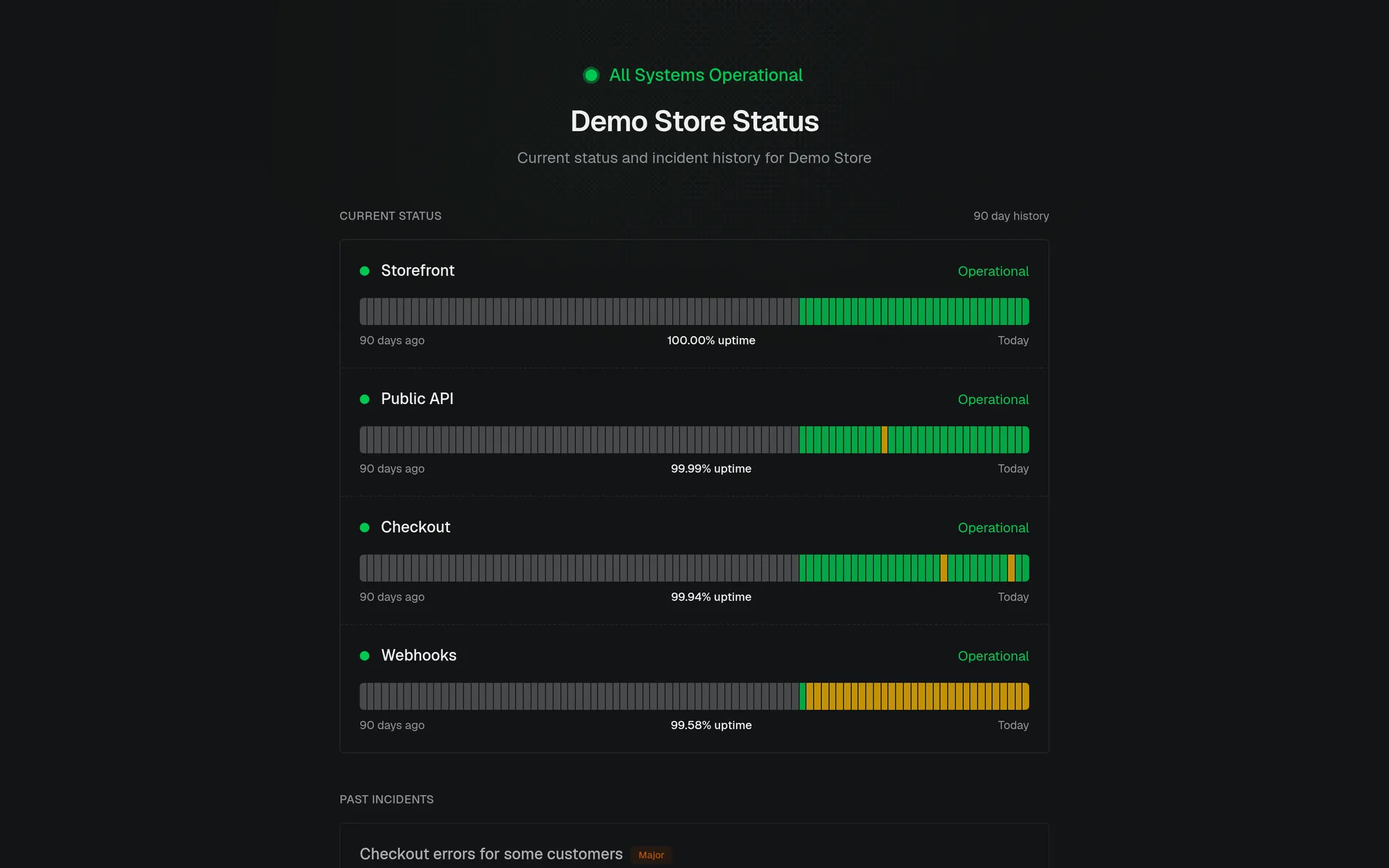
Create the status page
Each environment has one status page. Open Uptime, then the Status Page tab. The tab appears once you have at least one monitor.
| Field | Description |
|---|---|
| URL slug | Address of the page: https://monocle.sh/status/<slug>. Lowercase letters, numbers, and dashes. |
| Title | Shown at the top of the page |
| Description | Short text under the title |
| Logo URL | Your logo, shown in the header |
| Public | New pages are private. Turn this on to make the page visible to anyone with the URL. |
Under Resources, choose which monitors appear on the page. They are listed in the order set in the Monitoring tab.
What visitors see
- An overall status: All Systems Operational, or the worst status among your resources
- For each resource, its current status and a bar per day for the last 90 days, with its uptime percentage
- Active Incidents and Past Incidents
A resource shows Major Outage when it is down after 5 or more failed checks, Partial Outage when it is down after fewer, and Degraded Performance when its 90-day uptime is below 99%.
Incidents
Monitors don't post on the status page by themselves: incidents are written by your team, so you control what customers read.
From the Incidents tab, click Report new incident and fill in a title, a severity (Minor, Major, Critical, Maintenance), a status, and a first message. Post updates as the situation evolves; each update can move the incident to Investigating, Identified, Monitoring, or Resolved.
Custom domain
Serve the page from your own domain, such as status.example.com:
- In the Custom domain card, enter your subdomain and click Add domain.
- At your DNS provider, create a
CNAMErecord from that subdomain tocname.status.monocle.sh. - Click Check DNS. The domain goes through Waiting for DNS and Provisioning SSL before becoming Active.
The page must be public to be served on the custom domain. Each status page can have one custom domain.